Instant caption translation
Pick your language, press Translate and translated subtitles appear in real time as the video plays. 90+ languages out of the box.
YouTube Translate & Speak translates subtitles into 90+ languages right on the video player, shows them next to the original and can read them aloud. No copy-pasting, no switching tabs.
No API key needed to start. Works on YouTube, TED, Udemy and Coursera.
If you want to learn faster, watch videos in two languages.
Nếu muốn học nhanh hơn, hãy xem video bằng hai ngôn ngữ.
You hear the original and read the translation at the same time.
Bạn vừa nghe bản gốc vừa đọc bản dịch.
New words start to stick after just a few videos.
Chỉ sau vài video, từ mới đã bắt đầu dễ nhớ hơn.
What it does
Three tools that work together on the player you already use, so you never leave the video.
Pick your language, press Translate and translated subtitles appear in real time as the video plays. 90+ languages out of the box.
See the original and the translation at the same time. Ideal for picking up vocabulary or following along in two languages.
Have the translation spoken with your browser's built-in voices, natural Google Cloud TTS (Chirp3-HD) voices, or your own local TTS server over WebSocket.
No captions? No problem.
Some videos simply don't have subtitles. Turn on Soniox speech recognition and the extension listens to the tab's audio and writes captions from scratch, in real time.
AI video summary · YouTube
Press ✨ Summarize and get a structured summary of the entire video: overview, key points, takeaways and details. Works with OpenAI, Gemini, OpenRouter and Ollama.
Thoughtful details
Font, text size, colors, background opacity and text stroke. Your subtitles, your style.
Export the original and translated captions as SRT files, zipped together. Great for editing, studying or offline use.
Translations and summaries are cached per video and load automatically when you come back.
Move the control panel and the subtitle list anywhere on the screen.
Switch between videos and playlists on YouTube, TED and Udemy, and everything keeps working.
Close the subtitle list anytime without losing it. The 📜 button brings it back.
Choose your engine
Start with zero setup, then plug in the provider that fits your needs. Every API key stays in your browser.
Turns captions into your language
Reads the translation aloud
For videos without subtitles
Structured video summaries
Each service has a free tier: Google Cloud includes 500,000 translated characters a month at no charge, OpenRouter offers many free models and Ollama on your own machine is free. You only pay if you go past those limits or pick paid models.
In action
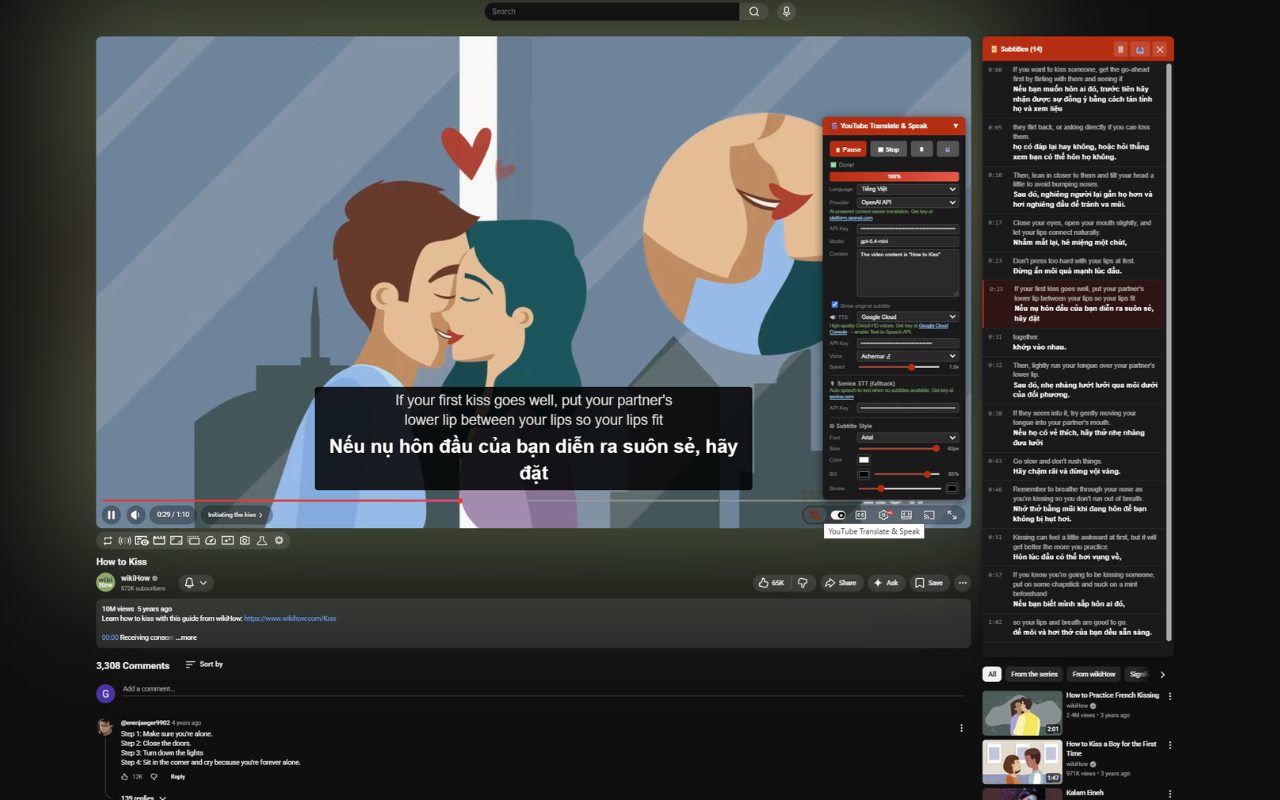
The control panel sits on the video and every line is listed on the side, so you can follow along or jump back.
Getting started
Install the extension from the Chrome Web Store, then:
Go to any video on YouTube, TED, Udemy or Coursera.
The control panel appears on the player automatically.
Choose your language and provider, then press ▶ Translate.
Bilingual subtitles appear right away. Turn on read aloud if you like.
Free to use
API keys are optional upgrades, never a requirement.
No account and no API key.
openai/gpt-oss-120b:freeAdd a key only when you want more.
Keys are stored in your browser and sent only to the official service you picked.
Privacy
There is no account to create and no server of ours in the middle. Requests go straight from your browser to the service you chose.
Read the privacy policyStored in your browser and sent only to the official endpoint they belong to.
No analytics, no telemetry, no browsing history.
Tab audio is captured only while Soniox speech-to-text is on.
Wipe the cache with the 🗑 button, or uninstall to remove everything.
FAQ
What people usually ask before and after installing.
Questions, bugs or ideas?
[email protected]YouTube, TED, Udemy and Coursera. More platforms are on the way.
No. Install it and go. The free Google Translate engine handles translation and your browser's voices handle speech. You can also use OpenRouter with free models; just grab a free key from openrouter.ai/keys.
They are optional upgrades:
Each service has a generous free tier. Google Cloud gives you 500,000 translated characters a month at no charge, OpenRouter has many free models and Ollama on your own computer is completely free. You only pay if you go beyond those limits or use paid models.
Keys stay in your browser's local storage and are sent only to the official service endpoints, such as Google Cloud or OpenAI. They never pass through a third-party server.
Add a Soniox API key. The extension captures the tab's audio and converts speech to text on the fly, then translates it like any other subtitle.
On YouTube, click the ✨ Summarize button on the right side. The extension takes the video transcript and sends it to the AI provider you chose (OpenAI, Gemini, Ollama or OpenRouter). You get back a structured summary with an overview, key points, takeaways and details, written in your language. Summaries are cached, so you don't need to generate them again.
Ollama runs AI models on your own computer, free and private. To use it:
ollama pull llama3.2.OLLAMA_ORIGINS=* and restart Ollama.With an Ollama Pro subscription you can also use Ollama Cloud for faster inference.
OpenRouter gives you 200+ AI models through a single API key, and many are free (look for the :free tag). Get a key at openrouter.ai/keys and browse models at openrouter.ai/models.
Choose Local WebSocket in the TTS settings and run the supertonic-tool server. The extension connects to your local TTS server for speech, with adjustable playback speed.
Very much so. The bilingual view lets you compare the original and the translation line by line. Add read aloud for pronunciation and you have an immersion tool built on real-world content.

Free to install. No API key needed to start.
Add to Chrome, it's free