🎭 ClickMask
Chrome ExtensionBlur or hide any element on a web page with one click. Great for screen sharing, screenshots, and recordings.
Install from Chrome Web StoreScreenshots
What It Does
Sometimes you need to share your screen or take a screenshot, but there's sensitive information you'd rather keep private. ClickMask makes that simple — just click on anything you want to conceal.
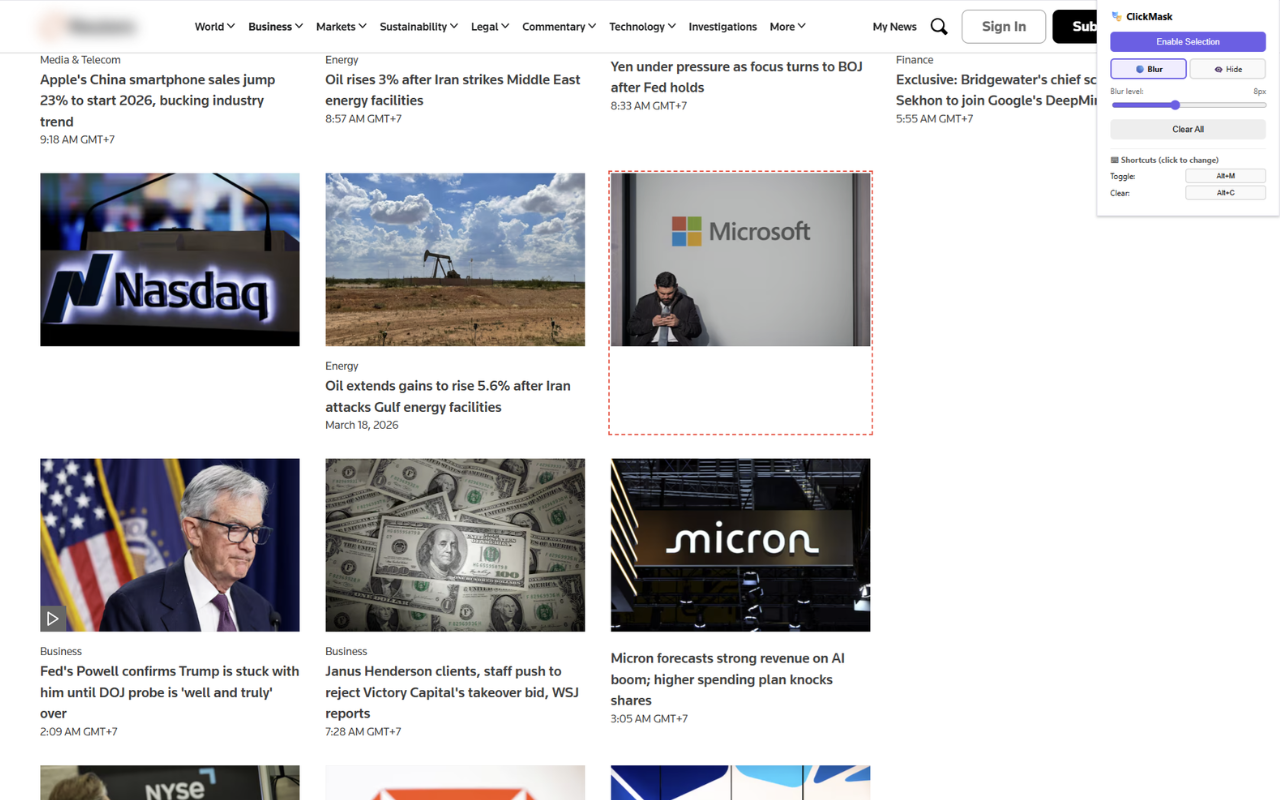
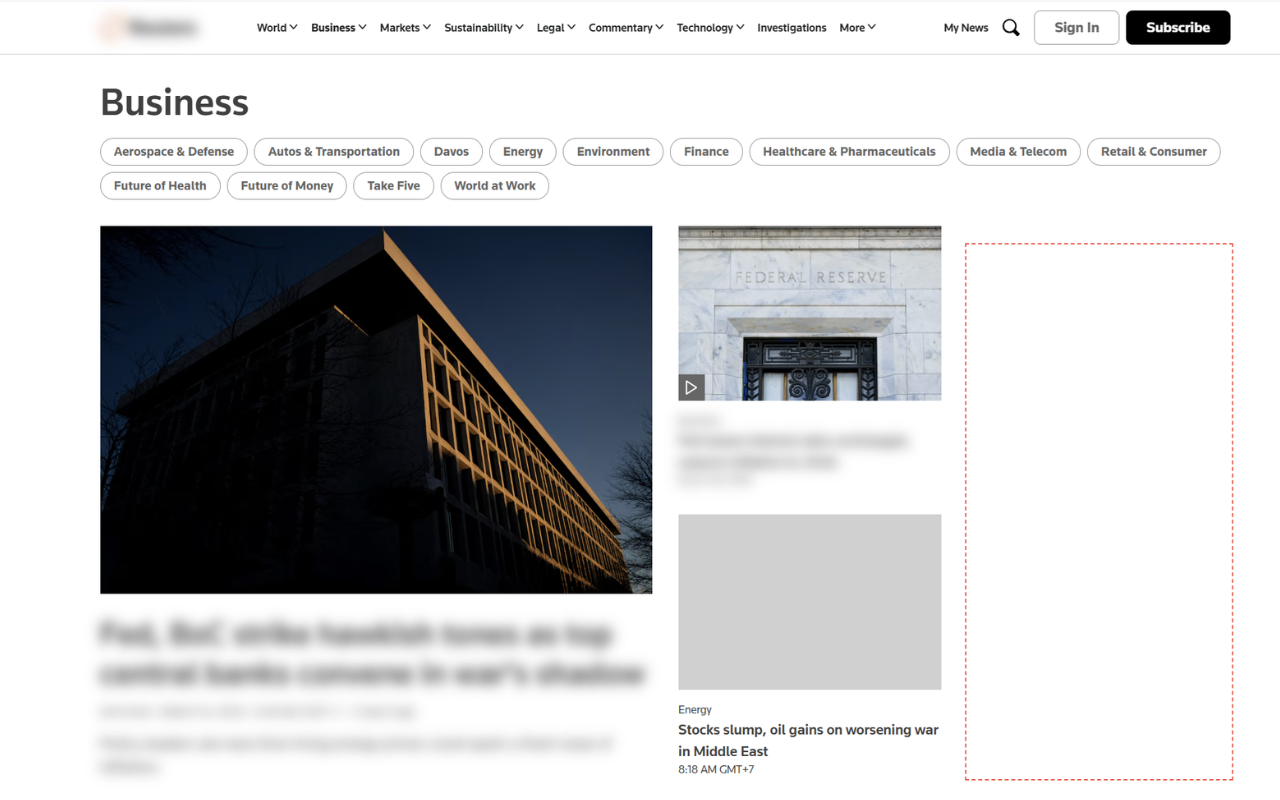
Hover over any element on the page and click to apply an effect. Choose between a Gaussian blur that makes content unreadable, or hide it entirely so it becomes invisible. Either way, the page layout stays exactly the same — nothing jumps or reflows.
Key Features
🔵 Blur Mode
Applies a Gaussian blur to the selected element. The content becomes unreadable but the element still occupies its original space. Blur intensity is adjustable from the popup (0–20 px) and updates all blurred elements in real time.
👁🗨 Hide Mode
Completely hides the selected element. The element becomes invisible but still takes up space, so the rest of the page layout is not affected.
⚡ One-Click Toggle
Click any element to apply an effect. Click it again to restore it. Hit "Clear All" to undo everything at once.
⌨️ Keyboard Shortcuts
Control the extension entirely from the keyboard. Toggle selection mode with Alt + M and clear all effects with Alt + C. Shortcuts are fully customizable.
🔒 Free & Private
Completely free. No data is collected, and effects are temporary — refresh the page and everything goes back to normal. See our Privacy Policy for full details.
How to Use
- Click the 🎭 ClickMask icon in the toolbar to open the popup.
- Click "Enable Selection" to enter selection mode.
- Hover over any element — a red dashed outline will appear around it.
- Click the element to apply the selected effect (Blur or Hide).
- Click the same element again to remove the effect.
- Click "Disable Selection" to exit and restore normal page interaction.
FAQ
Q: Are the effects permanent?
A: No. Effects are temporary and per-page. Refreshing or navigating away removes all applied effects.
Q: Does it change the actual page content?
A: No. ClickMask only applies visual effects. The underlying page content is never modified.
Q: Does it work on other browsers?
A: Yes. It works on Chrome, Edge, Brave, and other Chromium-based browsers.
Q: Can I use it during a live screen share?
A: Yes. Enable selection mode, blur or hide what you need, then disable selection mode to interact with the page normally — all while sharing your screen.
Q: Does the page layout shift when I hide elements?
A: No. Hidden elements become invisible but still occupy their original space, so the layout stays intact.
Support
Questions, feedback, or issues? Contact us: [email protected]
Install Extension