🎙️ SubMate
Windows AppListen to subtitles in natural-sounding voices, perfectly synchronized with the video playing in VLC. Use external .srt files or automatically extract embedded subtitles from streams such as Fshare.
Download for WindowsScreenshots
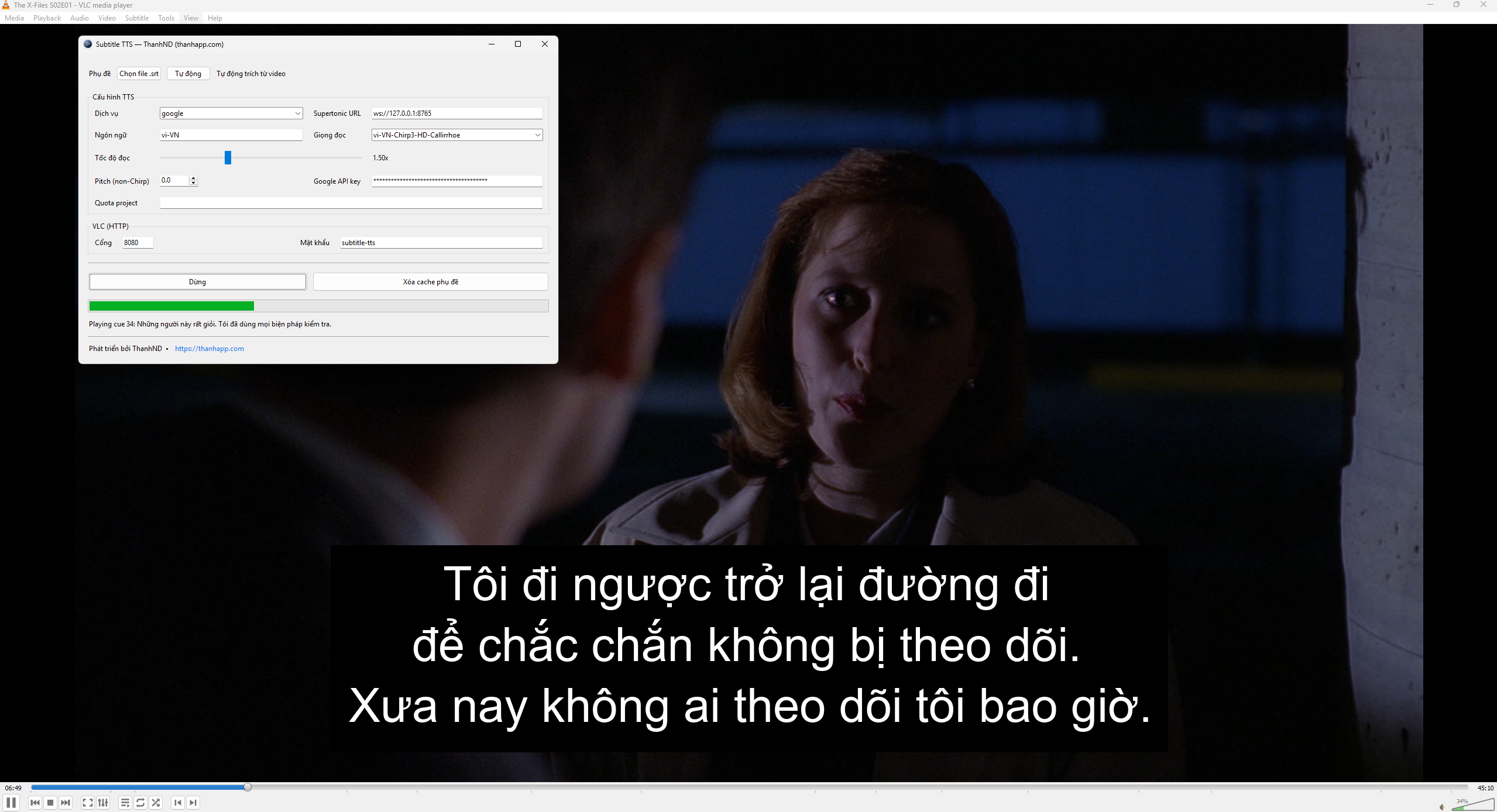
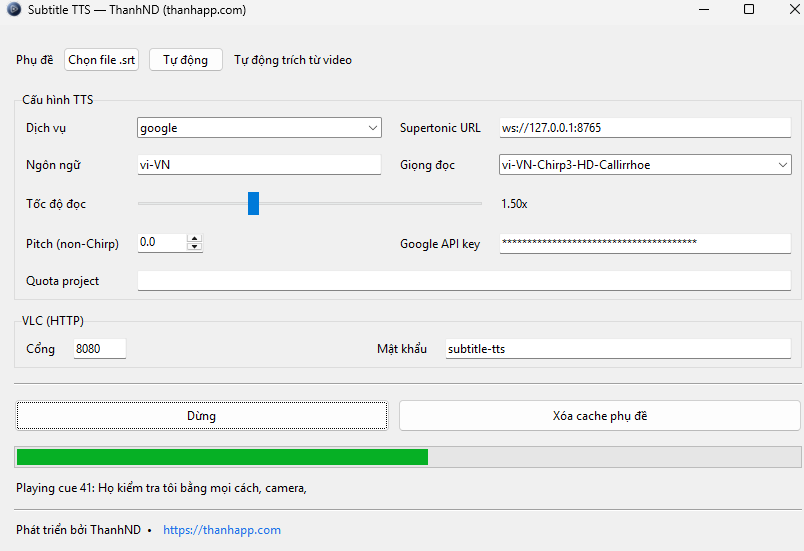
What It Does
SubMate is a standalone companion app for VLC Media Player. It takes subtitles from a local file you select or automatically extracts embedded subtitles from a video stream such as Fshare, generates speech through Google Cloud TTS or Supertonic, and plays it in sync with the video's current position.
When you seek forward or backward in VLC, the app follows along and reads the correct subtitle at the right time. Generated audio is cached per video, so replay is instant without generating the speech again.
Key Features
🔊 Synchronized Subtitle Speech
Reads each subtitle line aloud exactly when it appears, perfectly synchronized with VLC playback. Seeking forward or backward is handled automatically.
📄 Two Subtitle Sources
Load an external subtitle file (.srt, .ass, .ssa, or .vtt) for immediate results, or let the app extract embedded text subtitles from a video stream with FFmpeg, prioritizing the area around your current playback position.
🗣️ Two TTS Services
Choose Google Cloud Text-to-Speech with Chirp 3 HD voices in more than 90 languages, or Supertonic through a local WebSocket server with Vietnamese F1–F5 and M1–M5 voices.
🎚️ Voice, Language, Speed, and Pitch
Select any available voice for your language, adjust the speaking rate from 0.25x to 4.00x, and fine-tune pitch for non-Chirp voices. Changes apply to the next subtitle without interrupting the current line.
⚡ Smart Caching
Generated audio is cached per video. The same subtitle and voice combination is never generated twice. Extracted subtitle segments are saved so reopening the same video loads instantly, while switching to another video automatically clears the old cache.
🎯 Windowed Extraction
When extracting embedded subtitles from a remote stream, the app works in windows around your current position, so you can start listening without waiting for the entire video to be processed.
How It Works
The app communicates with VLC through its HTTP web interface to read the current playback time. It matches that time against subtitle segments, generates or retrieves cached audio for each line, and plays it at the right moment.
- Open a video in VLC, either a local file or an Fshare stream.
- Open SubMate and select your TTS service and voice.
- Select a subtitle file, or click "Auto" to extract embedded subtitles.
- Click "Read Subtitles" to synchronize speech with the video.
Requirements
VLC Setup (One Time)
Enable VLC's HTTP web interface so the app can read playback position:
- VLC → Tools → Preferences → Show settings: All
- Interface → Main interfaces → select "Web"
-
Interface → Main interfaces → Lua → HTTP Password:
subtitle-tts - Save your settings and restart VLC.
To verify the setup, open
http://127.0.0.1:8080/requests/status.json in your browser.
Leave the username blank and enter subtitle-tts as the
password.
Run TTS Offline with Supertonic
Supertonic is a text-to-speech engine that runs entirely on your
computer. After installation, it requires no internet connection and
sends no data to the cloud. It supports more than 30 languages,
including Vietnamese F1–F5 female voices and M1–M5 male voices. Fshare
TTS connects to Supertonic through a local WebSocket server at
ws://127.0.0.1:8765, provided by
supertonic-tool.
What You Need
- Python 3.10 or later
- uv — the Python package manager required on Windows
git-lfsto download the model files- A GPU is recommended for faster speech generation (NVIDIA/CUDA or DirectML), but CPU-only operation is also supported.
1. Install (One Time)
Download the source code, ONNX model, and sample voices:
git clone https://github.com/thanhng8/supertonic-tool
cd supertonic-tool

# Download the ONNX model and sample voices (requires git-lfs)
git lfs install
git clone https://huggingface.co/Supertone/supertonic-3 assets

# Install Python runtime dependencies
cd py
uv sync
cd ..
2. Start the Server
Whenever you want to use Supertonic, open the tool directory
and run the launcher. On Linux or macOS, use
sh start_tts_server.sh instead.
cd tool
start_tts_server.bat
The server automatically detects CUDA or DirectML GPUs and falls back to
the CPU when no compatible GPU is available. It is ready when it reports
that it is listening at ws://127.0.0.1:8765. The first launch
may take a little longer while the engine initializes.
3. Use It with SubMate
Keep the server running in the background, open SubMate, choose Supertonic as the TTS service, select an F1–F5 or M1–M5 voice, and play your subtitles as usual. All speech generation takes place on your computer.
Tip: if you see the uv is required error, install
uv
and reopen your terminal. See the
supertonic-tool README
for advanced options such as changing the port with --port
or forcing CPU mode with --cpu.
Supported Subtitle Formats
- Supported: .srt, .ass, .ssa, .vtt, and embedded text subtitles that FFmpeg can extract
- Not supported: Image-based subtitles such as PGS or VobSub, which require OCR
Support
Questions, feedback, or issues? Contact us at [email protected].
Privacy & data handling: cloud TTS providers receive only the subtitle text you choose to synthesize; Supertonic runs locally on your computer.