📂 Dual Explorer
Windows AppA modern Windows file manager with dual panels, fast search, smart navigation, and tools that make everyday file work easier.
App Version 1.1.8 - Updated 2026-04-21
Microsoft Store — coming soon Direct DownloadScreenshots
Changelog
v1.1.8 — April 21, 2026
- File names now sort more naturally, so numbered items appear as 1, 2, 3, 10 instead of 1, 10, 2
- Each panel now keeps its own view mode while you move up into parent folders or continue browsing deeper
- You can drag selected files into subfolders inside the same panel, including from search results
- A floating drag badge now shows whether the action will Move or Copy and how many items are being dragged
- Very long folders in Details view no longer keep stretching downward or jump around while you scroll
- Overlay panel icon layouts are more stable and easier to read when working with image-heavy folders
v1.1.7 — April 16, 2026
- Grid view no longer flickers after moving or copying files
- The app can now show a small update notice and a banner popup at startup, both auto-dismiss after a few seconds
- Creating new folders, files, and shortcuts from the panel context menu is now smoother and more reliable
- Pasting files with Ctrl+V feels faster, especially when pasting multiple times in a row
- Improved panel layout and search popup positioning
v1.1.6 — April 6, 2026
- Drive-wide search is now much faster on NTFS drives — the index updates in the background instead of scanning the entire drive each time
- Search popup redesigned: one popup for the active panel, easy to switch between current folder and full drive search
- Dragging files from Windows Explorer, WinRAR, or 7-Zip into a panel now works more reliably
- Clicking and dragging in the sidebar tree no longer accidentally highlights text
- New Type column in details view — sort files by type and resize the column as needed
- Option to set Dual Explorer as your default file manager (Win+E shortcut)
- Fixed some cases where clicking files would not select them correctly
v1.1.5 — April 3, 2026
- Copy and paste now works between Dual Explorer and Windows Explorer — Ctrl+C in one, Ctrl+V in the other
- You can now resize column widths in details view by dragging the column borders
- Select a range of files with Shift+Click, or drag to draw a selection box around multiple files
- Drag and drop files from WinRAR or 7-Zip directly into a panel, including password-protected archives
- Press F2 to rename a file right where it is — the name is highlighted automatically, and invalid characters are blocked as you type
v1.1.0 — March 31, 2026
- Unique icons for over 90 file types so you can tell files apart at a glance
- Pin your favorite folders to Rapid Access for one-click navigation
- Zoom the interface from 100% to 200% for high-DPI screens — your choice is remembered
- Back and forward buttons to move through your folder history like a browser
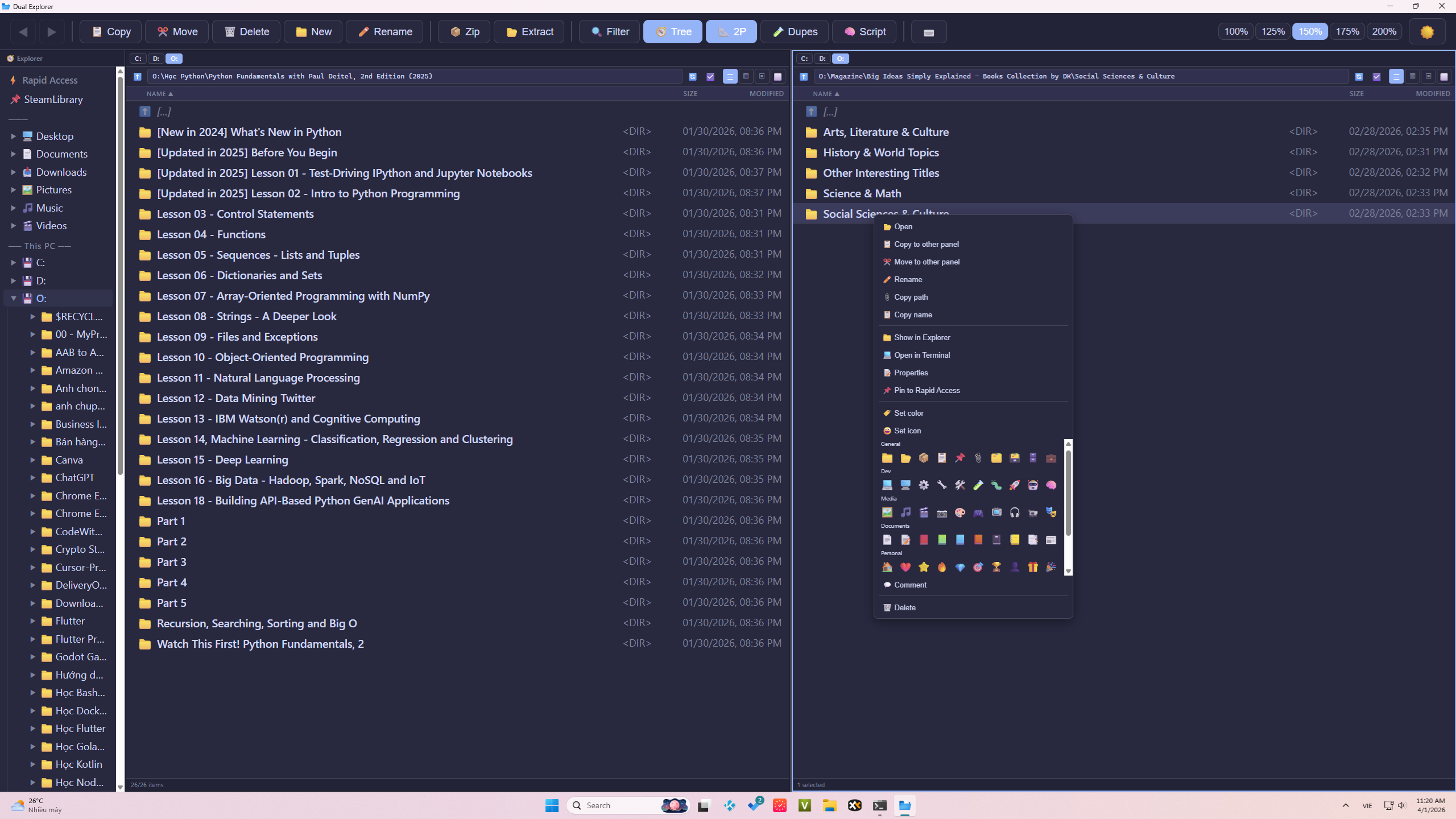
- Right-click menu now includes copy path, copy name, open in terminal, show in Explorer, and file properties
- Thumbnail previews for images, videos, documents, and app icons
- Find and clean up duplicate files with the built-in Duplicate Finder
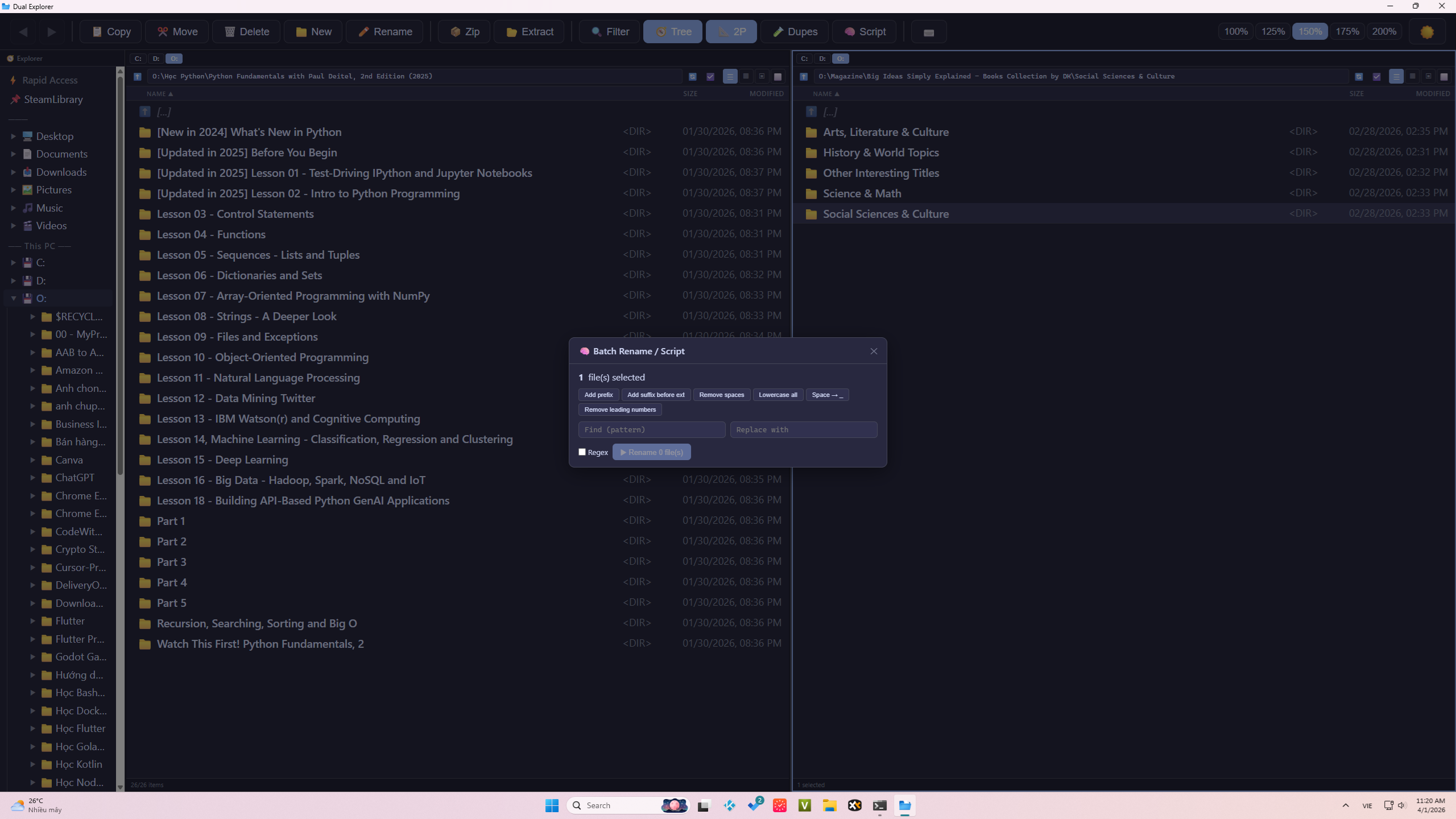
- Rename many files at once with Batch Rename — preview changes before applying
- Compress files to ZIP, RAR, or 7Z with a simple dialog and live progress
- Four view modes: Details, Small, Medium, and Large grid
- Panels now refresh automatically when files change outside the app
- Smooth dark/light theme switching
v1.0.0 — March 31, 2026
- First release — a fast dual-panel file manager for Windows
What It Does
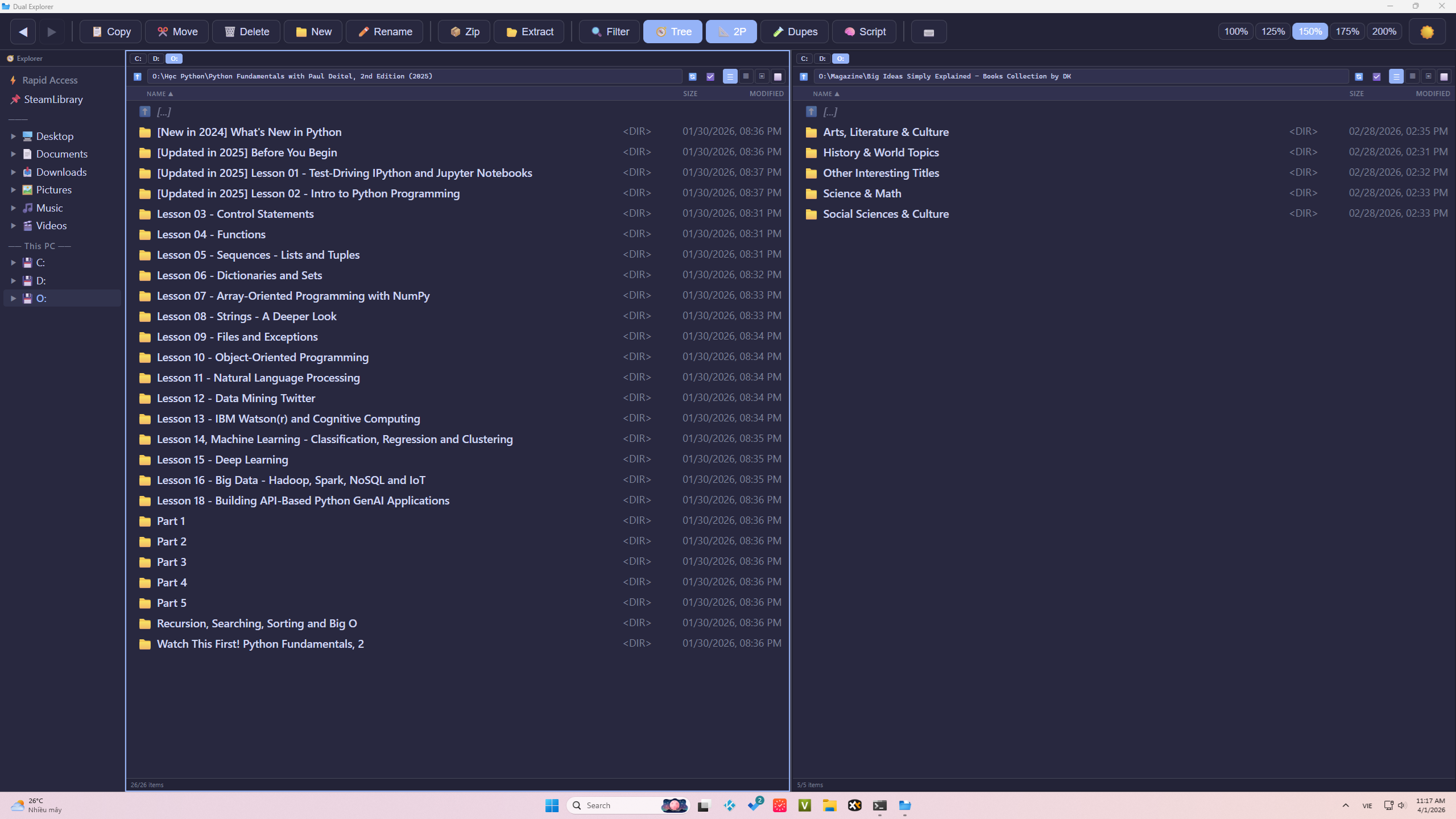
Dual Explorer is built for people who work with files all day and want something faster, clearer, and more practical than the default Windows Explorer. It gives you two working areas at once, strong keyboard and mouse workflows, and built-in tools for the jobs that usually require several separate apps.
You can browse two locations side by side, search the current folder or a whole drive, drag files in from other apps, tag important items, inspect drive space from This PC, and manage daily file work without constantly opening extra windows.
Key Features
📁 Flexible Dual Panel Workspace
Work with a full-width main panel and a second panel layered on top. This makes it easier to compare folders, copy or move files between locations, and reveal long file names without squeezing both panels into a rigid split view. If you want a simpler layout, you can switch to a single-panel mode at any time.
🔍 One Search Popup for the Active Panel
Press Ctrl+F to open one shared search popup that always works on the panel you are currently using. Search the current folder when you want focused results, or switch to the current drive when you need to find something across a larger area. Results appear directly inside the panel, so you stay in the same workflow.
⬆️ Smart Update Notice
Dual Explorer can check your latest published app config at startup and show a small update popup only on the launch frequency you decide. Users see the new version clearly, get a direct download shortcut, and the popup stays lightweight with a 10-second auto-dismiss timer and a visible countdown bar.
📣 Promo and Donate Banner Popup
Show a floating banner popup for your other projects, announcements, or donation page without cluttering the main layout. The banner title, image, target link, and display frequency can all be controlled remotely, and if the banner image fails to load the app simply skips it instead of breaking the interface.
🖥️ This PC Drive View
Click This PC in the tree to turn the active panel into a drive dashboard. Every drive shows a clear space bar, a percentage indicator, and easy-to-read Free, Used, and Total storage information. It is a much better way to spot a full or nearly full drive before it becomes a problem.
🖼️ Four View Modes
Switch between Details, Small, Medium, and Large views depending on the kind of folder you are working in. Details mode is designed for serious file work, with resizable columns, horizontal scrolling, and better handling for long names. Each panel now keeps its own chosen view mode as you navigate, and icon views are better for pictures, media, downloads, and mixed-content folders.
🖱️ Drag, Drop, Copy, Move, and Paste
Move files naturally between panels with the mouse, use Ctrl to copy instead of move, and paste directly into the active panel. You can also drag files into subfolders inside the same panel, move items straight out of search results, and see a small drag badge that tells you whether the result will be a move or a copy before you let go.
✅ Fast Multi-Select
Select files the way Windows users expect: Ctrl+A for the active panel, Shift+Click for ranges, Ctrl+Click for toggles, and drag-lasso selection for quick groups. It works well for both small jobs and larger clean-up sessions where you need to pick many files quickly.
✏️ Natural Rename Workflow
Rename files in place with F2, press Enter to apply, or just click outside the name box to finish. This keeps the workflow fast and direct, especially when you are renaming several files while staying inside the same folder view.
⚡ Everyday File Actions
Copy, move, delete, permanently delete, create folders, create empty files, launch the native Windows shortcut wizard, open files, open a terminal, show items in Explorer, and view Properties without leaving the app. You can also use New Path to type a destination manually. If the folder already exists, the panel can jump there immediately. If it does not exist yet, the app can create it for you and move you into it.
🗜️ Built-in Archive Tools
Compress and extract ZIP, RAR, and 7Z archives with live progress. This is useful for packaging folders, unpacking downloads, handling client files, or moving selected items straight into your working folder without leaving the file manager.
✏️ Batch Rename
Rename many files at once using find and replace, regex, prefixes, spacing cleanup, lowercase conversion, and other presets. A preview helps you check the result before applying the change, which is especially useful for photo sets, downloads, and grouped project files.
🔍 Duplicate Finder
Scan a folder and quickly spot duplicate files by size, then review and clean them up with much less manual work. It is useful for media folders, backup folders, and project directories that collect repeated copies over time.
🏷️ Tags, Colors, Icons, and Comments
Make folders and files easier to recognize by giving them color tags, emoji icons, and personal notes that appear directly in the list. When both panels are looking at the same folder, those changes show up on both sides right away. You can also export and import metadata to keep those labels when moving to another setup.
🖼️ Thumbnail Preview
See visual previews for images and many common file types so you can recognize content faster before opening it. This is especially helpful in media folders, asset libraries, and mixed download folders where file names alone are not enough.
🌲 Sidebar Navigation
Jump quickly through Desktop, Documents, Downloads, This PC, drives, and pinned folders from the tree view on the left. The tree is designed for fast movement across common locations without the accidental text highlighting that makes some tree views feel messy.
📌 Rapid Access
Pin the folders you use most so they are always one click away. It is a simple way to keep your main projects, media folders, or workspaces close without navigating through the full tree every time.
⚙️ Custom Actions and Automation
Create your own custom actions and run them from inside the app on the files you selected. This is useful for personal workflows such as conversions, helper scripts, file processing, or project-specific commands that go beyond normal file management.
⌨️ Custom Hotkeys
Adjust the app to your own habits by remapping keyboard shortcuts and keeping your preferred workflow intact. If you rely on keyboard-heavy file work, this helps the app feel much more personal and efficient.
🌙 Dark and Light Themes
Choose the look that feels best for your workspace, whether you prefer a darker interface or a brighter one. Combined with zoom controls, it helps the app stay comfortable on different screens and lighting conditions.
💾 Session Memory, Back/Forward, and Auto-Refresh
Open the app and return to the folders you were using last time. Move through folder history with back and forward navigation, and let the panels refresh automatically when files change so the view stays current without extra effort.
Built for Everyday Use
Dual Explorer is designed to stay responsive while you browse folders, search drives, resize columns, drag files, and work with large lists. Search, update checks, and remote banner loading stay out of the way so the interface can remain focused on the folder work in front of you, and long Details lists now behave more predictably while scrolling.
It is suitable for people who manage downloads, development folders, media collections, documents, archives, and general Windows file work every day, and want a tool that feels more capable without becoming complicated to use.
Requirements
Support
Questions, feedback, or issues? Contact us: [email protected]
Microsoft Store — coming soon